Auto-Tune Pro X Deep Dive: 25 Years of Pitch Correction Royalty, Now Enhanced with AI (2025)
May 15, 2025
Perplexity AI Internal Knowledge Search: How Enterprise Pro Teams Search Web and Docs Simultaneously
May 16, 2025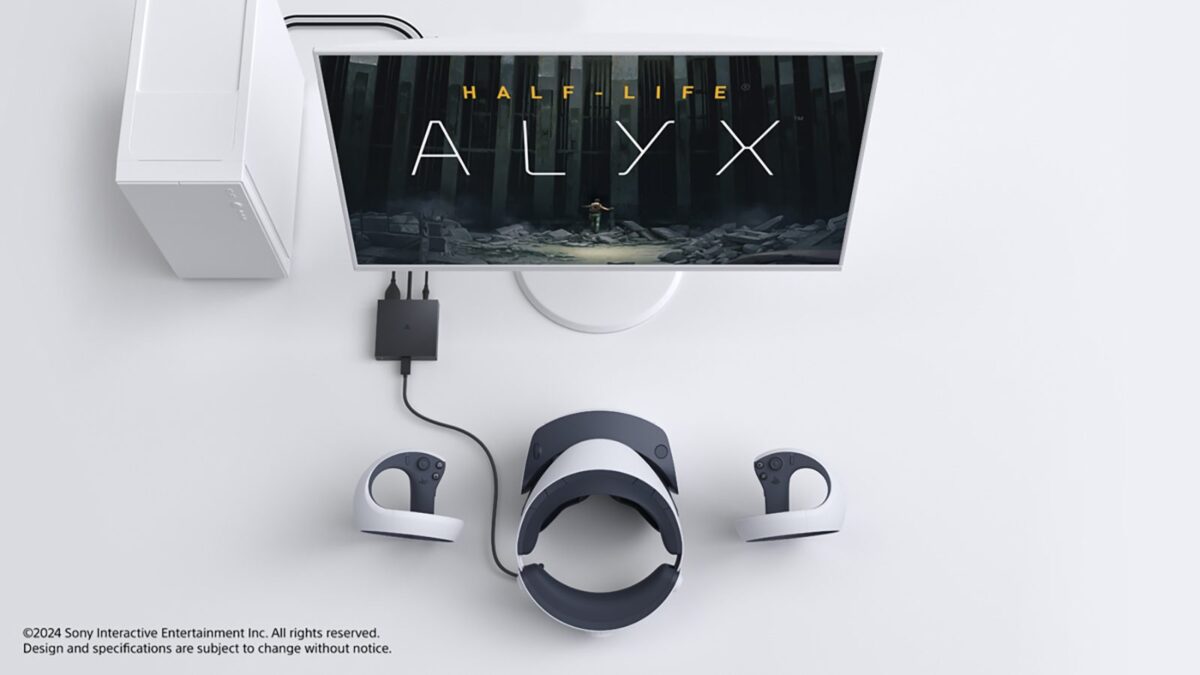
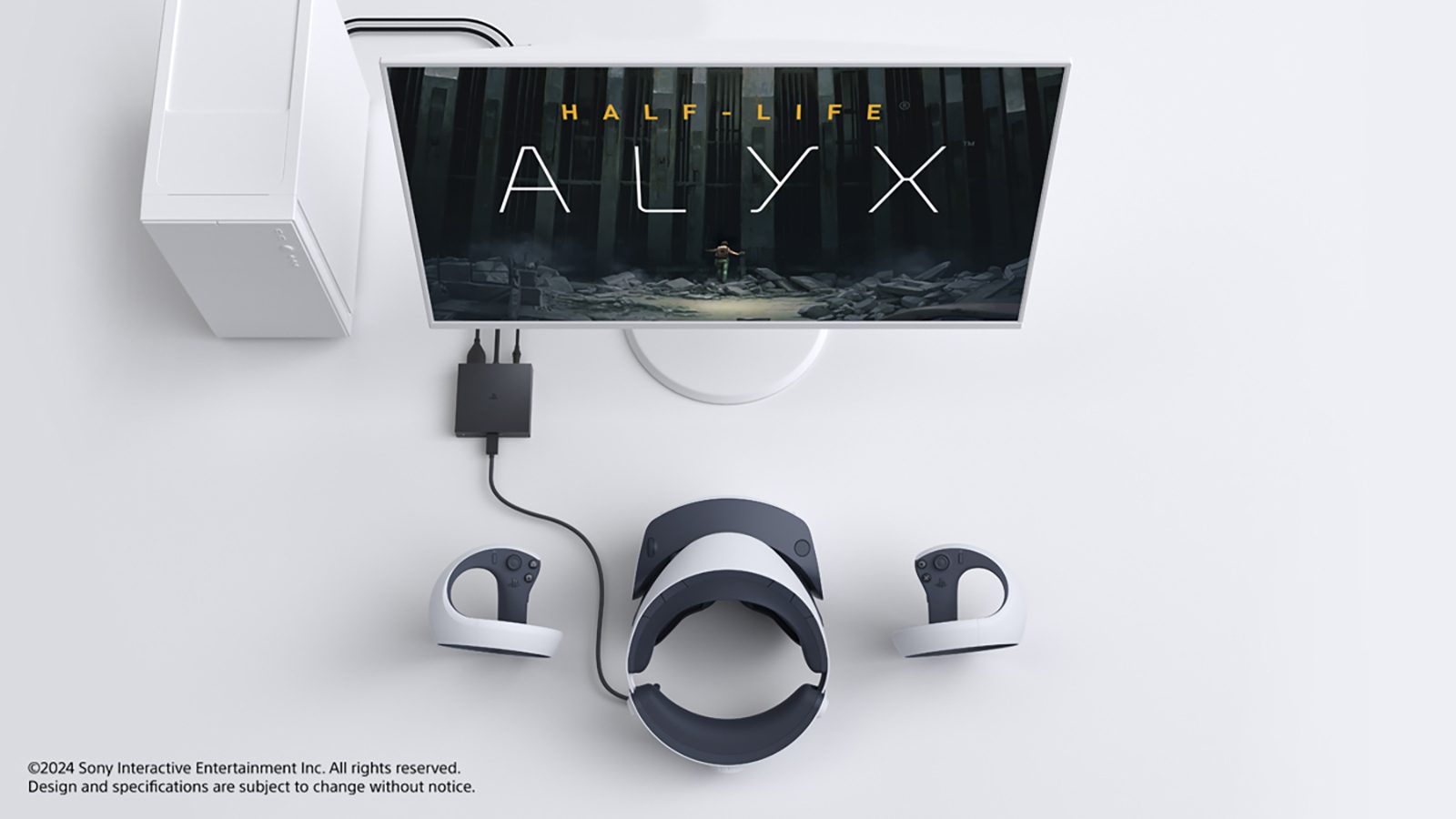
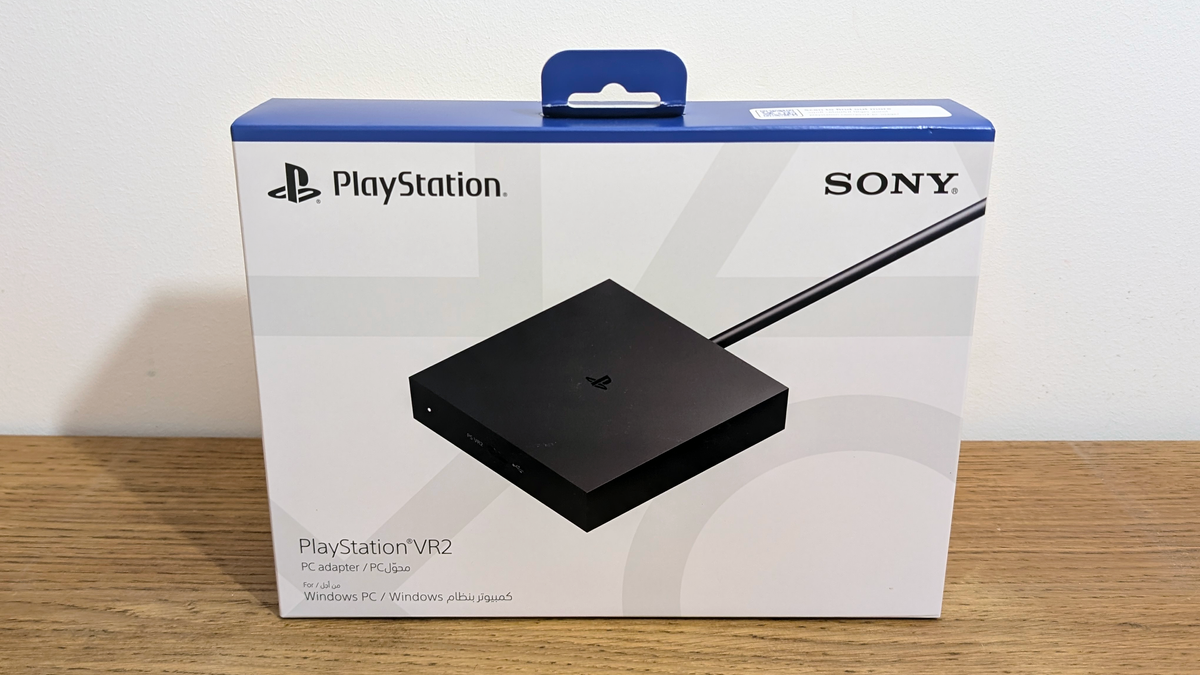
A $59.99 adapter just turned the PS VR2 into one of the best PC VR headsets you can buy. After nearly a year of firmware updates, bug fixes, and community-driven optimization, the PS VR2 PC adapter has matured from a rough first impression into a genuinely compelling way to access over 7,000 SteamVR titles through gorgeous OLED displays.
The PS VR2 PC Adapter Journey: From Rocky Launch to Plug-and-Play
When Sony announced the PS VR2 PC adapter in June 2024, the VR community was cautiously optimistic. A $59.99 dongle that unlocks SteamVR on a headset originally locked to PS5? Sounds almost too good to be true. And at launch in August 2024, it kind of was — rotational distortion bugs, AMD GPU users locked out of refresh rate controls, and Bluetooth controller lag made early adopters question their purchase.
But Sony moved fast. The PS VR2 App v2.0.0 update in September 2024 was a turning point. It squashed the rotational distortion bug that was causing motion sickness for some users, unlocked 90Hz and 120Hz refresh rate selection for AMD GPUs, and fixed the notorious TP-Link UB500 Bluetooth driver issue that was causing controller lag. Multiple stability patches followed through late 2024 and into 2025.
By mid-2025, the PS VR2 PC adapter experience has reached what I would call maturity. SteamVR 2.8+ compatibility is solid, setup is genuinely plug-and-play, and you get access to 2000×2040 per-eye OLED displays at either 90Hz or 120Hz. That is a remarkable amount of visual fidelity for a sub-$60 adapter.
PS VR2 PC Adapter Setup: Step-by-Step Guide
According to Sony’s official support page, here is what you need to get started with the PS VR2 PC adapter:
- CPU: Intel i5-7600 or AMD Ryzen 3 3100 (minimum) — Recommended: modern mid-range or better
- GPU: NVIDIA GTX 1650 or AMD RX 5500 XT (minimum) — Recommended: RTX 3060 / RX 6600 XT or better
- RAM: 8GB minimum
- Connections: DisplayPort 1.4 cable + USB 3.0 port (no hubs or extension cables)
- Bluetooth: 4.0 or higher (TP-Link UB500 recommended after driver fix)
The setup process itself is straightforward. Download the PS VR2 App from Steam, connect the adapter to your PC via DisplayPort and USB, plug the headset into the adapter, and SteamVR automatically detects it. Compared to the initial launch experience, this is night and day — what used to require troubleshooting forums and workarounds is now a five-minute affair.
One critical note: the adapter must be connected directly to your PC’s USB port. USB hubs and extension cables cause detection failures and intermittent disconnects. Sony chose DisplayPort 1.4 instead of the more common HDMI, which PC Gamer noted is an odd choice since many gaming PCs prioritize HDMI outputs. Make sure your GPU has a free DisplayPort output before purchasing.\n\n\n\n
For Bluetooth, the TP-Link UB500 remains the community-recommended adapter after Sony patched the driver compatibility issue in v2.0.0. Pair both Sense controllers before launching SteamVR, and keep the Bluetooth adapter within line of sight of your play area for the best tracking reliability. If you experience occasional controller drift, re-pairing usually resolves it within seconds.
90Hz vs 120Hz: PS VR2 PC Performance Optimization
Getting the PS VR2 PC adapter running is the easy part. Getting it running well requires understanding the relationship between refresh rate, resolution scaling, and your GPU’s capabilities. After months of community testing and firmware refinements, here are the settings that matter most.
Start with 90Hz. This is the single best piece of advice for most users. While 120Hz sounds better on paper, the jump from 90Hz to 120Hz demands roughly 33% more GPU power. For anything below an RTX 4070, 90Hz delivers a much more consistent and comfortable experience. Dropped frames in VR do not just look bad — they cause motion sickness.
Resolution scaling is your best friend. SteamVR’s 100% resolution equals the PS VR2’s native resolution and produces the sharpest image. But if your GPU struggles, 68% has emerged as the community-recommended sweet spot for mid-range GPUs — it provides a noticeable performance boost while keeping the image quality acceptable for most games.
Disable HAGS (Hardware Accelerated GPU Scheduling). This Windows feature causes stuttering and frame timing issues with the PS VR2 PC adapter. Turning it off in Windows Graphics Settings is one of the simplest and most effective fixes.
AMD users: avoid Adrenalin 25.5.1 and 25.6.1 drivers. These specific driver versions break VR mode entirely. Roll back to Adrenalin 25.4.1 or older for stable VR performance. Set VR Server to Efficiency Mode in SteamVR settings, and consider vrperfkit if you are running lower-end hardware.
What You Lose (and Gain) Going from PS5 to PC
Let me be upfront about the trade-offs. Connecting your PS VR2 to PC via the adapter means losing approximately 30% of the headset’s unique features. Eye tracking is disabled — no foveated rendering to save GPU power. HDR is gone. Headset haptics and adaptive triggers on the Sense controllers do not work on PC. These are significant losses, especially eye tracking, which PS5 games use for both performance optimization and gameplay mechanics.
But what you gain is access to the entire SteamVR ecosystem — over 7,000 titles and counting. Half-Life: Alyx, the game many consider the pinnacle of VR gaming, is now playable on your PS VR2. Beat Saber with custom maps and mods. Boneworks and BONELAB. Microsoft Flight Simulator in VR. Racing sims like Assetto Corsa and iRacing where the OLED’s deep blacks and fast response times transform night driving.
UploadVR’s review praised the PS VR2’s OLED panels as comparable to premium headsets like the Valve Index in visual quality. At $59.99 for the adapter (assuming you already own the headset), this is arguably the best value proposition in PC VR right now.
Must-Play PS VR2 PC Games: Top Picks for OLED
With 7,000+ compatible titles, where do you even start? Here are the games that showcase the PS VR2 PC adapter’s strengths — particularly that stunning OLED display.
- Half-Life: Alyx — The gold standard of VR gaming. City 17’s details pop on the PS VR2’s high-resolution OLED panels. If you have not played this, it is reason enough to get the adapter.
- Beat Saber (PC edition) — Custom maps, mods, and the full modding community. At 120Hz, the responsiveness is phenomenal.
- Boneworks / BONELAB — Physics-driven VR interaction at its best. GPU-demanding, so 90Hz recommended unless you have an RTX 4070+.
- Microsoft Flight Simulator VR — OLED’s true blacks make night flying an entirely different experience. One of those “you have to see it” moments.
- Assetto Corsa / iRacing — Racing simulators benefit enormously from OLED’s response time and contrast ratio. The cockpit detail at 2000×2040 per eye is stunning.
- Skyrim VR / Fallout 4 VR — With mods, these become hundreds of hours of VR content. The community has done incredible work making these run well.
- Pavlov VR — The go-to multiplayer VR shooter. Runs well at 90Hz on mid-range hardware and the competitive community is thriving.
- VTOL VR — Military flight sim designed ground-up for VR. The cockpit interactions feel incredible and OLED contrast makes instrument panels pop.
My Take: What 28 Years in Tech Taught Me About Adapters
After 28 years working across music production, audio engineering, and technology, I have developed a healthy skepticism toward anything with “adapter” or “compatibility” in the product name. Most of the time, these products are compromises — you lower your expectations and live with the limitations. The PS VR2 PC adapter started that way too.
But the trajectory of this product over the past year has genuinely impressed me. Sony’s systematic approach to firmware updates — fixing the rotational distortion in v2.0.0, adding AMD refresh rate support, improving Bluetooth stability — mirrors what I have seen with the best audio hardware companies. Products that ship imperfect but improve methodically through updates are often better long-term investments than products that ship polished but stagnate.
In the studio, I always tell people that the second or third firmware update is where hardware really finds its stride. The PS VR2 PC adapter has hit exactly that maturation point. Yes, losing eye tracking and HDR on PC is a real downside. But the OLED display quality alone justifies the adapter’s existence. Running 2000×2040 per-eye OLED at 90Hz through a $59.99 adapter gives you a PC VR visual experience that rivals headsets costing three to four times more. In a market where Meta Quest 3 leads with standalone convenience but LCD panels, the PS VR2 on PC occupies a unique and compelling niche: the best OLED PC VR experience at an aggressive price point.
Final Verdict: Is the PS VR2 PC Adapter Worth It in 2025?
If you already own a PS VR2, getting the PC adapter is a no-brainer at $59.99. A year of firmware updates has validated the stability, and 7,000+ SteamVR titles are waiting. Your PS5-only headset becomes a full-fledged PC VR device.
If you are entering VR for the first time, the PS VR2 plus PC adapter combination delivers the best OLED VR experience per dollar in 2025. The Meta Quest 3 wins on standalone flexibility and ease of use, but for pure PC VR visual quality, the PS VR2’s OLED panels remain superior. Just make sure you have at least an RTX 3060-class GPU and a free DisplayPort 1.4 output before committing.
Need help with VR setup optimization, PC builds, or tech automation? Let’s talk.
Get weekly AI, music, and tech trends delivered to your inbox.