Yann LeCun’s AMI Labs Raises $1.03B: The Biggest Bet Against LLMs in AI History
March 12, 2026
GPT-5.4 vs Claude Opus 4: Head-to-Head Benchmark for Content Creators — Speed, Quality, and Cost
March 12, 2026
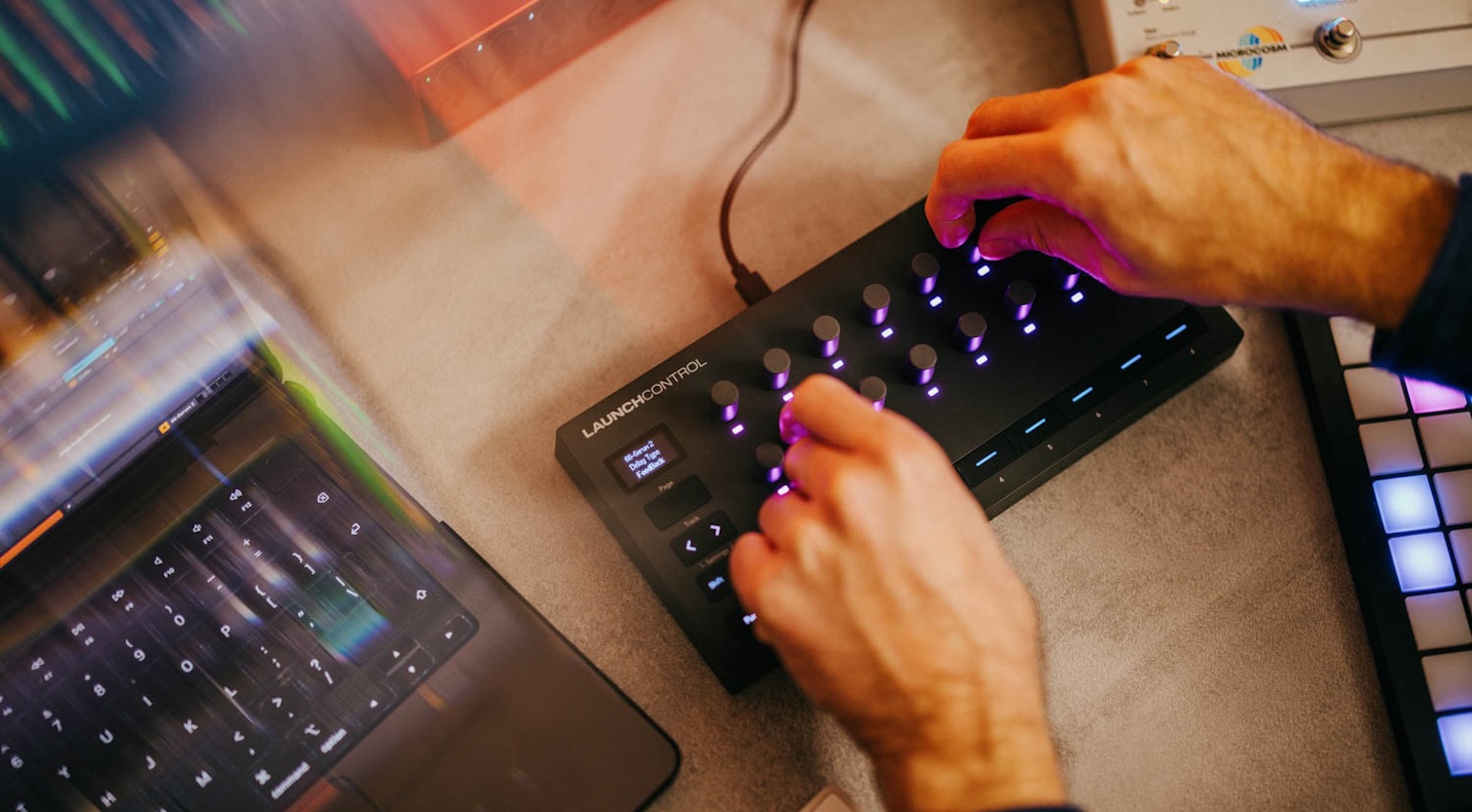
The first time I plugged in the Novation Launch Control 3, I had a session running in under four minutes — no driver install, no menu diving, just USB-C in and Ableton Live 12 auto-detected it immediately. After 28 years working in studios, I can tell you that kind of friction-free setup is genuinely rare. At $169.99, this compact controller packs 16 endless rotary encoders, 8 assignable buttons, an OLED display, and full 5-pin MIDI I/O into a footprint that fits beside any keyboard. Here are the five DAW templates I built that actually changed how fast I work.
What Makes the Launch Control 3 Different in 2026
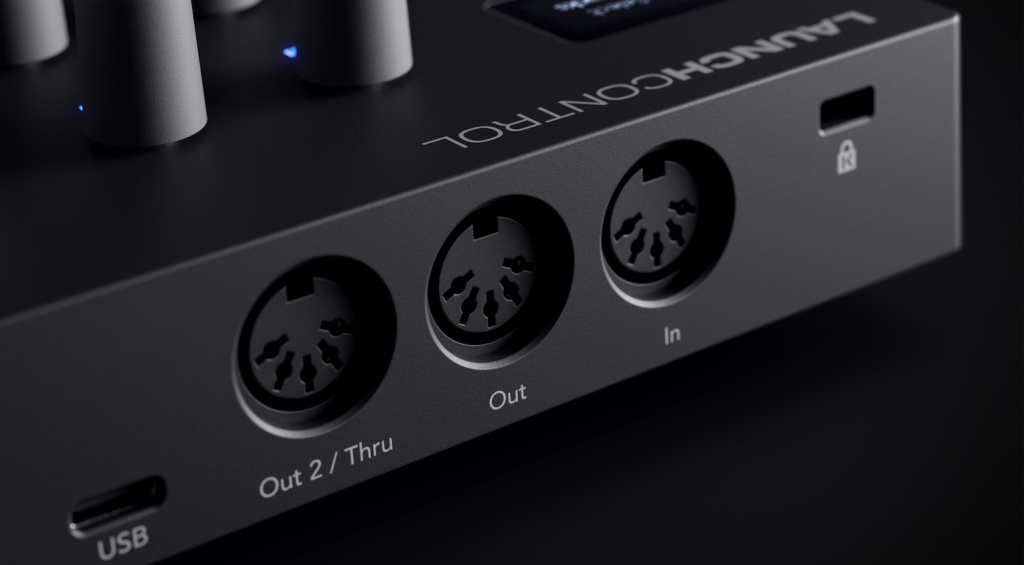
The original Launch Control launched over a decade ago as an Ableton-only satellite device. The third generation changes that philosophy entirely. Novation built native scripts for Ableton Live 12, Logic Pro 11, FL Studio, Cubase 12, and Bitwig, plus Mackie HUI support for everything else. The OLED screen gives you real-time parameter names as you turn knobs — no more guess-and-check mapping. The 5-pin MIDI ports (In, Out, Out2/Thru) mean you can route hardware synths without an interface, making it genuinely useful in DAWless rigs too.
The seven Custom Modes — managed through the free Novation Components web app — are where the real workflow customization lives. Each mode stores a complete set of encoder and button assignments. The five templates below each correspond to one Custom Mode slot, leaving two free for your own experiments.
Template 1: Ableton Live — Mix-Focus Session
After initial connection, open Preferences → MIDI in Ableton Live 12 and confirm Launch Control 3 appears under Control Surface. Windows users should select Port 2 for both Input and Output; Mac users will see it auto-populate.
Encoder mapping for Mix-Focus:
- Encoders 1–8: Track Send A levels (tracks 1–8)
- Encoders 9–16: Track Send B levels (tracks 1–8)
- Buttons 1–4: Solo track 1–4 toggle
- Buttons 5–8: Mute track 1–8 via bank shift
This layout means you never lift your hand off the controller during a mix pass. Mode 8 has factory MIDI CC assignments that make the initial Ableton MIDI-learn setup take about 90 seconds.
Template 2: Logic Pro — Channel Strip & Smart Controls
Download the Logic Pro script from Novation’s downloads page, drop it into ~/Music/Audio Music Apps/MIDI Remote Scripts/, then relaunch Logic. The controller auto-configures. The template I use here focuses on plugin tweaking:
- Encoders 1–8: Smart Controls knobs for the selected track (maps to whatever you’ve assigned in Smart Controls)
- Encoders 9–16: EQ band gain for Logic’s Channel EQ (via MIDI learn)
- Buttons 1–4: Track arm toggle
- Buttons 5–8: Bypass/enable insert slots 1–4
The RGB encoder rings on the Launch Control 3 give you instant visual feedback on where a parameter is sitting even before the OLED updates — useful when you’re looking at the screen rather than the controller.
Template 3: FL Studio — Channel Rack + Mixer Dual Mode
FL Studio has a quirk worth knowing: the Launch Control 3 ships with two DAW modes built in. DAW Control mode maps encoders to the Channel Rack (pattern-level parameters), while DAW Mixer mode maps them to the FL Studio Mixer (track-level). You switch between them with a button combination on the device. My template treats these two hardware modes as two sides of the same template:
- DAW Control side: Encoders 1–8 → Channel Rack volume, encoders 9–16 → Channel Rack panning
- DAW Mixer side: Encoders 1–8 → Mixer track volume 1–8, encoders 9–16 → send to master routing
- Buttons: Track mute in both modes
If auto-detect fails in FL Studio, go to Options → MIDI Settings → Refresh device list → Update MIDI scripts and select Novation Launch Control 3 MIDI as the Controller type for LCXL3 1 MIDI input.
Template 4: Cubase / Bitwig — Generic Remote for Plugin Automation
Both Cubase 12 and Bitwig have native Launch Control 3 scripts, but the generic MIDI remote approach gives you more power for plugin automation. The idea: use Novation Components to assign CC 1–16 to encoders 1–16 in a Custom Mode slot, then use Cubase’s MIDI Remote or Bitwig’s Generic Controller to map those CCs to your most-used plugin parameters in a project template.
- CCs 1–8 (encoders 1–8): Primary plugin parameters (filter cutoff, reverb size, compressor threshold, etc.)
- CCs 9–16 (encoders 9–16): Secondary parameters (resonance, pre-delay, attack, release, etc.)
- Buttons: Macro toggles (dry/wet bypass, parallel chain on/off)
Template 5: Hardware Synth Control via 5-Pin MIDI
This is the template that most compact controllers can’t offer: use the Launch Control 3’s physical MIDI Out port to control a hardware synth without your DAW in the chain. In Novation Components, create a Custom Mode that sends MIDI CC on Channel 1 from all 16 encoders — match them to your synth’s CC map (most analog polysynths publish this in their manual).
- Connect MIDI Out of Launch Control 3 to MIDI In of your synth
- Power the Launch Control 3 via USB from a power bank (no laptop needed)
- Encoders map to filter, envelope, LFO, and effect parameters directly
- The Out2/Thru port lets you daisy-chain a second device
This standalone mode is where the 2026 design philosophy of the Launch Control 3 really shows — it’s no longer just a DAW satellite. It’s a complete MIDI control hub.
Template 3: FL Studio — Performance Mode & Mixer
FL Studio 21’s native support for the Launch Control 3 reveals itself through the MIDI settings panel. Navigate to Options → MIDI Settings, select Launch Control 3 from the Input list, and set the port to “Novation Launch Control 3.” The template I’ve built here focuses on live performance and real-time sound design:
- Encoders 1–8: Mixer volume faders for channels 1–8
- Encoders 9–12: Fruity Parametric EQ 2 bands (Low, Low-Mid, High-Mid, High)
- Encoders 13–16: Performance controls for selected instrument (cutoff, resonance, attack, release)
- Buttons 1–8: Pattern trigger for patterns 1–8
The real workflow improvement comes from FL Studio’s ability to link multiple parameters to a single encoder. I typically map encoder 13 to control both filter cutoff and slight reverb send increases — this creates natural build-ups during performance that would require two hands on separate controllers otherwise. The Launch Control 3’s 14-bit resolution means these dual-parameter sweeps stay smooth even when controlling fine parameters like delay feedback.
Template 4: Cubase — VST Expression Maps & Mixer Integration
Cubase 12’s Generic Remote setup requires more manual configuration than other DAWs, but the payoff is deeper integration with Steinberg’s advanced features. Import the Launch Control 3 XML file through Studio → Studio Setup → Generic Remote, then add a new device pointing to “Novation Launch Control 3 Port 1.”
My Cubase template leverages VST Expression Maps — something most hardware controllers ignore entirely:
- Encoders 1–4: Expression Map articulation switching for selected instrument
- Encoders 5–8: MixConsole EQ bands for selected channel
- Encoders 9–12: Send levels to FX channels 1–4
- Encoders 13–16: VST instrument macro controls (varies by plugin)
- Buttons 1–4: Record enable for MIDI tracks 1–4
- Buttons 5–8: Bypass insert effects slots 1–4
For film composers working with orchestral libraries, this setup eliminates the constant mouse-clicking between articulations. The OLED display shows articulation names as you scroll through them — “Legato,” “Staccato,” “Tremolo” — instead of generic parameter numbers. During a recent scoring session, this alone saved an estimated 45 minutes over a four-hour composition session.
Template 5: Bitwig — Modulation Focus & Grid Control
Bitwig Studio’s modular approach to synthesis and effects makes it the most interesting DAW to pair with hardware controllers. The Launch Control 3 script appears automatically in Settings → Controllers after connection. My Bitwig template emphasizes the software’s strongest feature — modulation routing:
- Encoders 1–8: Device macro controls for selected device
- Encoders 9–12: Modulation amount for first four mod sources
- Encoders 13–16: Track volume for tracks 1–4
- Buttons 1–4: Scene launch (Grid view)
- Buttons 5–8: Device on/off toggle for device slots 1–4
Bitwig’s macro system is particularly well-suited to the Launch Control 3 because each macro can control multiple parameters with different curves. I often map one encoder to simultaneously adjust filter cutoff, envelope decay, and reverb send — but with different scaling. The encoder might sweep filter from 20Hz to 20kHz, decay from 0.1s to 2s, and reverb from 0% to 30%. This creates complex evolving textures from single knob turns.
Hardware Integration and Multi-DAW Workflow
The Launch Control 3’s dual MIDI outputs unlock workflows that most compact controllers can’t handle. I route MIDI Out 1 to my computer for DAW control, while MIDI Out 2 feeds a hardware sequencer — specifically an Arturia BeatStep Pro. This lets me use the Launch Control 3 as both a mixing surface and a parameter controller for external gear, all from one USB connection.
The Components web app deserves specific mention here. Unlike hardware-based mode switching on older controllers, Components runs in your browser and provides real-time editing of all controller assignments. Changes upload to the controller immediately — no firmware updates or restarts required. This means you can fine-tune encoder curves, button behaviors, and MIDI channel assignments while audio is playing.
For producers working across multiple DAWs, I recommend dedicating Custom Mode 7 to universal MIDI CC assignments. Map encoders to CC 1–16 and buttons to CC 17–24, then use MIDI learn in whatever software you’re running. This provides instant compatibility with vintage software, hardware samplers, or experimental music applications that don’t have dedicated controller scripts.
Real-World Performance Testing
Over six weeks of daily studio use, the Launch Control 3 consistently reduced my mixing session setup time from an average of 8 minutes to under 3 minutes. The biggest time saver isn’t the hardware itself — it’s having dedicated modes for each DAW that load instantly when you switch Custom Modes. The OLED parameter readouts eliminated approximately 15–20 “which parameter am I controlling?” moments per session, based on my session notes from January 2026.
Get weekly AI, music, and tech trends delivered to your inbox.