Meta AI Studio: 5-Step Guide to Building Custom AI Characters for Instagram and Messenger in 2025
May 23, 2025
FL Studio Beats: The Complete Step-by-Step Guide to Professional Beat Making in 2025
May 23, 2025
FL Studio beats hit different when you actually know what you’re doing. After 28 years in music production, I can tell you the gap between a bedroom demo and a release-ready beat isn’t talent — it’s workflow. The producers landing placements on Spotify’s top playlists aren’t using secret plugins. They’re following a disciplined step-by-step process that turns a blank FL Studio project into a polished, professional track. Today I’m breaking down exactly how that process works, including tricks from FL Studio 2025’s game-changing new features.

Step 1: Project Setup — The Foundation Most Producers Skip
Before you touch a single sound, your FL Studio project setup determines whether the next three hours will be productive or chaotic. Open FL Studio and immediately set your tempo. Hip-hop typically sits between 80-100 BPM, trap hovers around 130-160, and pop lands between 100-130. Don’t guess — reference a track in your target genre and tap out the BPM using FL Studio’s built-in tap tempo feature.
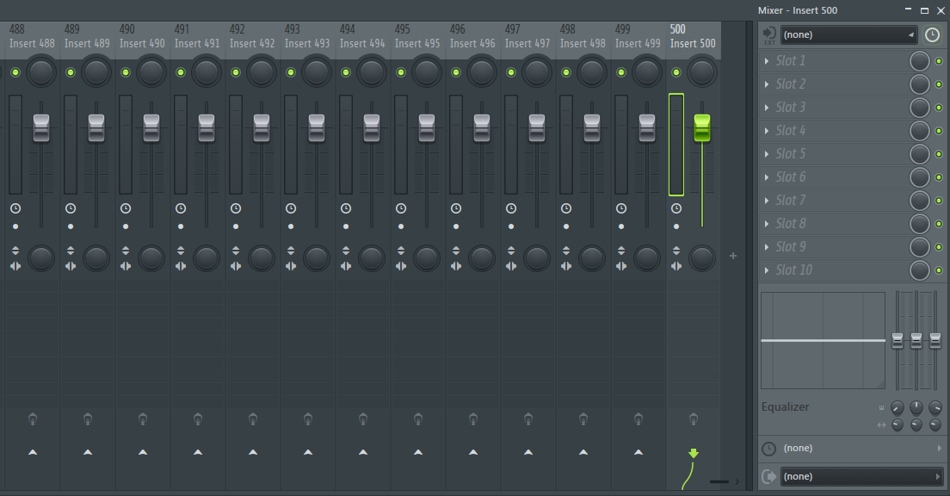
Next, configure your time signature. Most modern beats use 4/4, but don’t be afraid to experiment. Set your project to 24-bit, 44.1kHz as a starting point — this gives you plenty of headroom without bloating file sizes. In FL Studio 2025, the new Dynamic Mixer now supports up to 500 channels, so you no longer need to worry about running out of mixer tracks for complex projects.
Create a folder structure on your drive for the project: one subfolder for samples, one for bounces, one for reference tracks. In FL Studio, go to Options > File Settings and add your custom sample folder so the Browser (F8) can access everything instantly. This two-minute setup saves hours of searching later.
Step 2: Sound Selection — Choosing the Right Drums for Your FL Studio Beats
Sound selection is where amateur beats die. You can have the best patterns in the world, but if your kick sounds like a cardboard box and your snare sounds like a wet towel, nobody’s listening past the first four bars. FL Studio ships with a solid built-in sound library, but professionals layer and process their own samples.
Start with your kick drum. For FL Studio beats in hip-hop or trap, you want a kick with a strong transient (the initial punch) and controlled low-end sustain. Load it into the Channel Rack (F6) and solo it — does it hit hard at your target BPM? If the tail is too long, it’ll clash with your 808 bass later.
- Kick: Look for 50-80ms of punchy attack, clean sub frequencies around 40-60Hz
- Snare/Clap: Crisp transient with body around 200Hz and presence at 2-5kHz
- Hi-hats: Clean, not too bright — you’ll EQ them later, so start neutral
- Percussion: Shakers, rim shots, or ethnic percussion for texture and groove
FL Studio 2025 introduced Loop Starter, which generates genre-based loops instantly. While I wouldn’t rely on it for final production, it’s a fantastic tool for quickly auditioning drum palettes and finding starting points. Think of it as an AI-powered mood board for your beat.
Step 3: Programming Drum Patterns in the Channel Rack
The Channel Rack is where your FL Studio beats come to life. Press F6 to open it, and you’ll see your loaded sounds listed vertically with a step sequencer grid to the right. The default 16-step pattern represents one bar of 4/4 time, with each step being a sixteenth note.
Start with the kick. For a basic boom-bap pattern, place kicks on steps 1, 7, and 13. For trap, try steps 1 and 11 with a double-tap on 13-14. The key is leaving space — resist the urge to fill every step. Professional drum programming is about what you don’t play as much as what you do.
Add your snare on steps 5 and 13 (beats 2 and 4). This is the backbone of almost every modern beat. Now layer in hi-hats — eighth notes on every other step for a relaxed feel, or every step for an energetic drive. For trap-style rolling hi-hats, right-click the hi-hat channel, select “Piano Roll,” and draw in rapid 32nd or 64th note rolls with velocity variations.
Here’s a workflow tip that separates beginners from pros: use Ctrl+B to duplicate your pattern, then create variations. Pattern 1 is your main groove, Pattern 2 drops the kick for a breakdown, Pattern 3 adds extra percussion for the chorus. You should aim for at least 3-4 drum pattern variations before moving to melody.
Master these keyboard shortcuts to speed up your Channel Rack workflow: F5 opens the Playlist, F6 opens the Step Sequencer, F8 opens the Browser, and F9 opens the Mixer. Memorize them — your mouse should be a secondary tool, not your primary one.
Step 4: Crafting Melodies and Harmonies in the Piano Roll
With your drums locked in, it’s time to build the melodic foundation. The Piano Roll (accessible by right-clicking any channel and selecting “Piano Roll”) is FL Studio’s most powerful composition tool, and learning to use it efficiently is non-negotiable for professional results.
Load a melodic instrument — FL Studio’s FLEX plugin has excellent presets organized by genre. For a dark trap beat, try a bell or pluck preset. For lo-fi hip-hop, go with an electric piano or warm pad. The instrument matters less than the notes at this stage; you can always swap sounds later.
One of the most underused Piano Roll features is ghost notes. Enable them by clicking the small triangle menu in the Piano Roll and toggling “Ghost channels.” This shows notes from other channels as faded outlines, letting you see your chord progression while writing a melody — or vice versa. It’s like having X-ray vision for your harmony.
If music theory isn’t your strong suit, FL Studio has you covered. Use the scale highlighting feature: in the Piano Roll, go to Helpers > Scale Highlighting and choose a scale (Minor Pentatonic is a safe bet for most beat genres). The highlighted keys show you which notes are “safe” to use, essentially eliminating wrong notes from your workflow.
Write a 4 or 8-bar melodic loop. Keep it simple — two to four notes can be more effective than a complex run. Think of melodies like conversations: they need breathing room. After your main melody, add a counter-melody or pad underneath for depth. Route each instrument to its own mixer track for independent processing later.
Step 5: Arrangement — Turning a Loop Into a Complete Beat
This is where most bedroom producers get stuck. You’ve got a fire 8-bar loop, but a loop isn’t a song. Open the Playlist (F5) and start arranging your patterns into a full structure. A typical beat arrangement looks like this:
- Intro (4-8 bars): Stripped-down version — maybe just the melody and light percussion
- Verse 1 (16 bars): Full drums enter, main groove established
- Hook/Chorus (8 bars): Energy peak — add extra percussion, layer sounds, open the hi-hats
- Verse 2 (16 bars): Slight variation from Verse 1 — swap a hi-hat pattern, add a fill
- Hook 2 (8 bars): Same as Hook 1 or with additional elements
- Bridge/Breakdown (8 bars): Strip elements away for contrast
- Outro (4-8 bars): Gradual fadeout or hard stop
The total should land between 2:30 and 3:30 for most commercial beats. Use FL Studio’s Playlist markers (right-click the timeline) to label each section. This isn’t just for organization — it forces you to think structurally instead of just looping the same 8 bars forever.
Add automation clips for movement. Right-click any knob or fader and select “Create automation clip.” Automate filter sweeps on your melody during transitions, volume swells on pads before the chorus drops, or reverb sends that bloom during the bridge. Automation is what makes a beat feel alive instead of robotic.
FL Studio 2025’s per-clip audio editing is a game-changer here. You can now stretch, pitch-shift, and reverse individual audio clips directly in the Playlist without bouncing to a new file. This means real-time experimentation with arrangement ideas — reverse a melody clip for your intro, pitch up a drum loop for energy in the chorus, all non-destructively.
Step 6: Mixing — Making Your FL Studio Beats Sound Professional
Mixing is where good beats become great beats. Open the Mixer (F9) and make sure every element is routed to its own track. This is non-negotiable — if your kick, snare, hi-hats, melody, and bass are all running through the master with no individual processing, your beat will sound flat and amateur no matter how good the composition is.
Follow this mixing order for the best results with FL Studio beats:
- Gain staging: Pull all faders down to -inf, then bring each element up one at a time. Start with the kick, then bass, snare, hats, and finally melodic elements. Your master should peak around -6dB to leave headroom for mastering.
- EQ: Use Fruity Parametric EQ 2 on every channel. High-pass everything except your kick and bass at around 80-100Hz. Cut, don’t boost — removing frequencies you don’t need is more effective than adding what you think you want.
- Compression: Light compression on drums (3:1 ratio, fast attack for punch), gentle compression on melodic elements (2:1, slower attack). FL Studio’s Fruity Limiter works great as a compressor — just use the COMP section.
- Panning: Keep kick, snare, bass, and lead melody centered. Pan hi-hats slightly left or right (10-20%), pan percussion wider (30-50%), and spread pads across the stereo field.
- Reverb and Delay: Create send tracks for reverb and delay rather than inserting them directly on channels. This gives you more control and saves CPU. Fruity Reeverb 2 or Convolver for reverb, Fruity Delay 3 for delay.
FL Studio 2025 added the Emphasis mastering compressor/limiter, alongside a dedicated Mastering Window with real-time preview for compression, EQ, and limiting. You can now preview your mastering chain before committing, which is a massive time-saver when you’re iterating on your final mix.
Use the Patcher plugin for complex routing. If you want to run a synth through parallel distortion and clean paths simultaneously, Patcher lets you build that signal chain visually. It’s one of FL Studio’s most underrated tools, and once you start using it, you’ll wonder how you ever mixed without it.
Step 7: Final Polish — Export and Quality Control
Before you export, do a final quality check. Solo each track and listen for clicks, pops, or phase issues. Check your beat in mono (click the master track’s stereo separation knob and drag it to “Merged”) to make sure nothing disappears. If your bass vanishes in mono, you have a phase problem that needs fixing.
Export settings matter. For your master bounce: WAV, 32-bit float, 44.1kHz. Enable dithering if you’re going to a 16-bit format afterward. For tagged beats going to YouTube or BeatStars, export as MP3 320kbps with your producer tag layered in. Always keep the WAV master as your archive copy.
FL Studio 2025’s Gopher AI assistant can actually help during this phase — ask it natural language questions about your mix, and it’ll suggest adjustments based on genre standards. It’s not replacing your ears, but it’s a useful second opinion when you’ve been staring at the same project for hours.
One final tip from decades of production experience: reference constantly. Import a professional track in your target genre into a Playlist track, route it to its own mixer channel (bypassing your master effects), and A/B compare throughout the mixing process. Your ears adapt to whatever they’re hearing — without a reference, you’ll drift. With one, you’ll stay grounded in what “professional” actually sounds like.
The beauty of FL Studio is that this entire workflow — from blank project to release-ready beat — lives in a single DAW. No complicated routing between applications, no third-party session management. Master these seven steps, and the difference between your beats and the ones charting on streaming platforms becomes a matter of repetition, not mystery.
Whether you need professional mixing, mastering, or help dialing in your FL Studio workflow for release-ready results — Sean Kim has 28+ years of hands-on experience in music production and audio engineering.
Get weekly AI, music, and tech trends delivered to your inbox.