Best 4K Monitors 2025: 7 Updated September Picks for Creators and Gamers
September 10, 2025
Roland TR-8S MkII Rumor: 5 Clues the Classic Drum Machine Is Getting a September Successor
September 11, 2025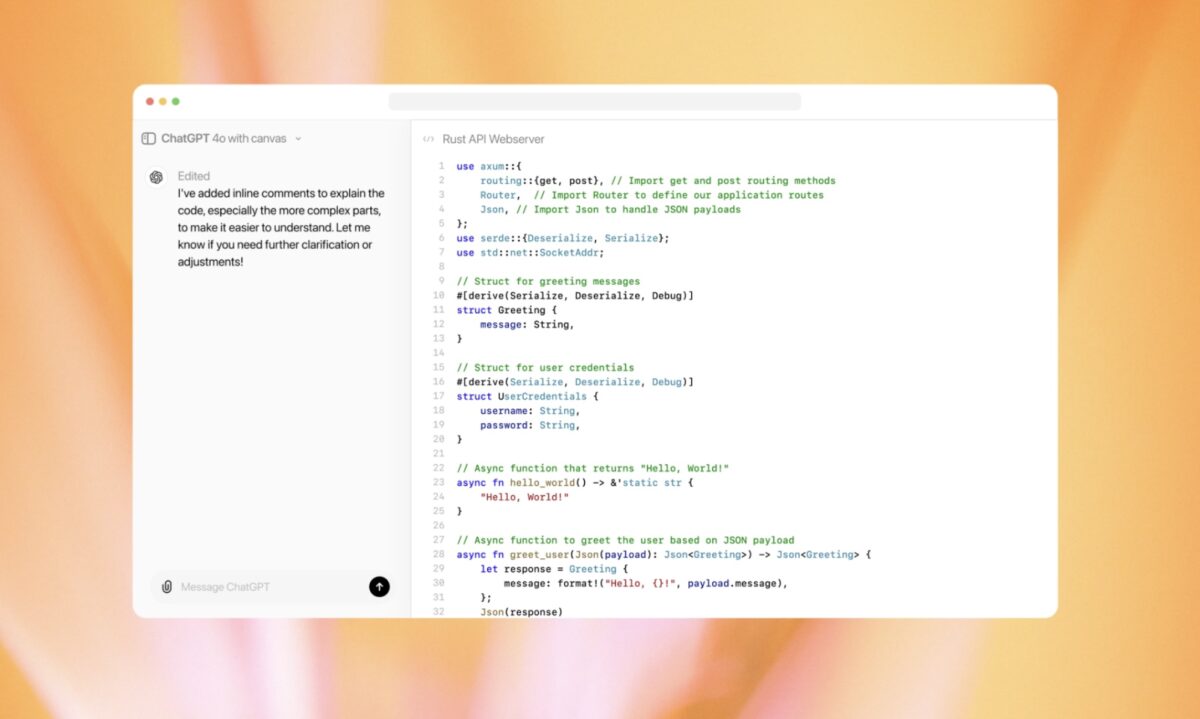
Stop copying and pasting between ChatGPT and your text editor. ChatGPT Canvas, OpenAI’s collaborative workspace built on GPT-4o, finally gives you a side-by-side writing and coding environment that eliminates that clunky back-and-forth — and after months of testing it across dozens of projects, I can tell you exactly where it shines and where it falls short.
What Is ChatGPT Canvas and Why Should You Care?
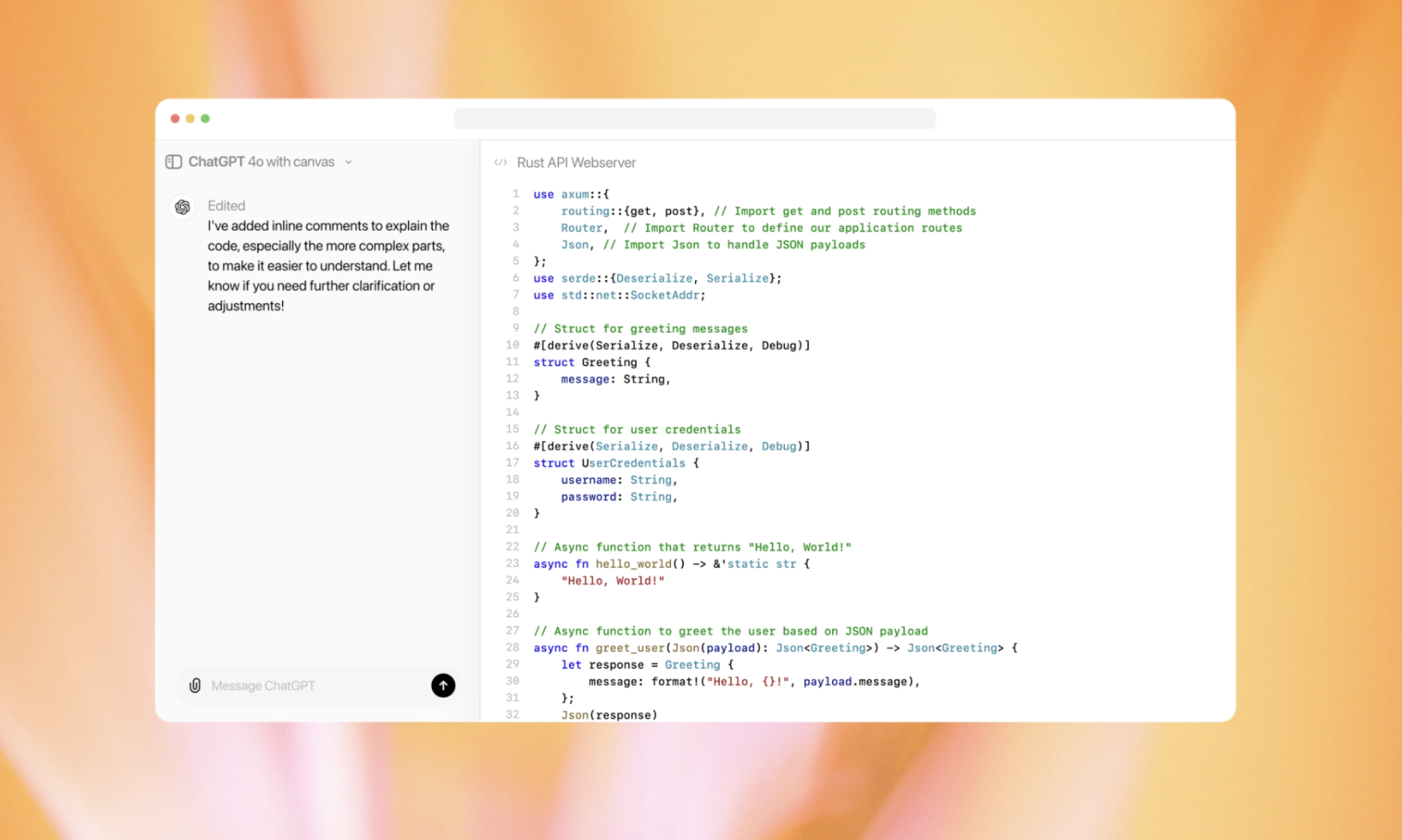
Launched on October 3, 2024, ChatGPT Canvas introduced something the AI world had been waiting for: a dedicated workspace window that sits right alongside your chat. Instead of asking ChatGPT to rewrite an entire document and scrolling through a wall of text in the conversation thread, Canvas opens a separate editing panel where you can see your work in progress, highlight specific sections, and make targeted edits — all without losing your conversation context.
OpenAI specifically trained GPT-4o for Canvas interactions, achieving 83% accuracy in detecting when a writing task should trigger Canvas and an impressive 94% accuracy for coding tasks. That means the system knows when to open Canvas automatically — you don’t have to fiddle with settings or manually toggle it on most of the time.
5 Ways ChatGPT Canvas Changes Your Workflow
1. Highlight-to-Edit: Surgical Precision Instead of Full Rewrites
This is the feature that makes ChatGPT Canvas fundamentally different from regular ChatGPT. Instead of telling the AI “rewrite the third paragraph to be more concise,” you literally highlight that paragraph in the Canvas workspace and type your instruction. The AI modifies only what you selected, leaving everything else untouched. This alone saves enormous amounts of time and eliminates the frustration of the AI “helpfully” changing parts of your document you didn’t want altered.
For writers working on long-form content — blog posts, reports, documentation — this is transformative. You maintain full control over the structure while leveraging AI for specific refinements. No more “can you change just that one sentence without touching anything else” prompts that never quite work in the regular chat interface.
2. Writing Tools That Actually Understand Context
Canvas comes with built-in writing shortcuts that go beyond simple grammar checks. You can adjust the length of your text (expand or condense), change the reading level from kindergarten through graduate-level academic writing, apply a “final polish” for overall quality improvement, and run grammar and clarity checks — all with one click.
The reading level adjustment is particularly useful for content creators who write for different audiences. Need to simplify a technical explanation for a general audience? Slide it down to a middle school reading level. Preparing an academic paper? Push it to graduate level. The AI restructures sentences, swaps vocabulary, and adjusts complexity while preserving your core message and arguments.
3. A Coding Environment That Thinks Like a Developer
ChatGPT Canvas isn’t just for writers. The coding side offers inline code suggestions, automatic print statement insertion for debugging, smart comment addition, error detection with rewrite suggestions, and — one of its most practical features — language translation across JavaScript, TypeScript, Python, Java, C++, and PHP.
That language translation capability is surprisingly robust. I’ve used it to convert Python scripts to JavaScript for web deployment, and it handles not just syntax conversion but also adapts to language-specific idioms and best practices. It won’t replace a deep understanding of each language, but for rapid prototyping and cross-platform development, it removes a significant amount of friction.
4. Version History and Export Options That Close the Loop
The January 2025 update brought features that turned Canvas from a nice-to-have into a serious productivity tool. You can now export your work directly to PDF, Word (.docx), Markdown, or code files — no more copying and pasting into another application to get a formatted document. The version history feature lets you track changes over time and use “show changes” highlighting to see exactly what was modified between iterations.
As Tom’s Guide reported, these export capabilities significantly close the gap between Canvas and standalone writing or coding tools. You can start a document in Canvas, iterate through multiple drafts with AI assistance, and export the final version in whatever format your workflow requires — all without leaving the ChatGPT interface.
5. Cross-Platform Availability That Meets You Where You Work
Canvas is available on Web, Windows, and macOS — covering the three platforms where most knowledge workers spend their time. This isn’t a web-only experiment; it’s a fully integrated feature across OpenAI’s desktop ecosystem. Whether you’re drafting a report on your office desktop, editing code on your MacBook, or reviewing a document on any browser, Canvas is there with the same feature set.
ChatGPT Canvas vs Claude Artifacts vs Cursor: Choosing the Right Tool
The AI workspace landscape now has three major players, each with a distinct philosophy. Understanding their differences is crucial for choosing the right tool — or, more likely, the right combination of tools.
ChatGPT Canvas is a collaborative editor. Think of it as Google Docs meets AI — you and the AI work on the same document simultaneously. Its strength is iterative refinement: writing a draft, polishing it, adjusting the tone, fixing specific sections. For writers and developers who want AI as a co-editor rather than a code generator, Canvas is the strongest option.
Claude Artifacts takes a different approach entirely. It’s a live preview renderer — when Claude generates HTML, React components, or SVGs, Artifacts shows you the rendered output in real time. This makes it exceptional for frontend development, interactive prototypes, and visual content. If you need to see what your code looks like as you build it, Artifacts has a clear edge. Canvas, by comparison, shows you the code itself but not the rendered result.
Cursor occupies a third niche: it integrates directly into your development environment. Rather than being a separate AI workspace, Cursor embeds AI capabilities into a full-featured code editor with file system access, terminal integration, and project-wide context. For professional developers working on real codebases, Cursor offers a depth of integration that neither Canvas nor Artifacts can match — but it’s designed for coding, not writing.
Here’s how I’d break it down:
- Content creation and editing: ChatGPT Canvas wins — its highlight-to-edit and reading level controls are unmatched for writing workflows.
- Frontend prototyping and visual output: Claude Artifacts wins — live rendering makes iteration dramatically faster.
- Professional software development: Cursor wins — project-wide context and IDE integration matter more than AI chat features.
- Backend scripting and quick code tasks: Canvas and Artifacts are roughly equal, with Canvas having an edge for iterative debugging.
Practical Tips for Getting the Most Out of ChatGPT Canvas
After extensive use, here are the strategies that have made the biggest difference in my Canvas workflow:
Start broad, then narrow down. Write your first draft using regular ChatGPT conversation, then switch to Canvas for refinement. Canvas excels at editing existing content, not generating from scratch — the initial conversation gives the AI context that carries into the Canvas session.
Use highlight-to-edit for tone consistency. When you have a long document where some sections feel off-brand, highlight just those sections and instruct the AI to match the tone of the rest. This is far more effective than asking for a full-document tone pass.
Leverage reading level adjustments for repurposing. Write once at your natural level, then use the reading level control to create simplified versions for different audiences — a technical blog post becomes an executive summary becomes a social media explainer, all from the same source document.
For coding, use the comment addition feature before sharing. Before exporting code for a team review or documentation, have Canvas add inline comments. The AI understands the logic and generates contextually relevant comments that actually help readers understand the code — not generic “this is a function” type annotations.
The Bottom Line: Where ChatGPT Canvas Fits in 2025’s AI Toolkit
ChatGPT Canvas represents a meaningful evolution in how we interact with AI for creative and technical work. It’s not trying to replace your IDE or your word processor — it’s filling the gap between “chatting with an AI” and “using a professional tool.” The highlight-to-edit functionality alone justifies giving it a serious trial, and the January 2025 export updates make it practical enough for production workflows.
The smartest approach in 2025 is treating these tools as complementary rather than competitive. Use Canvas for writing and iterative editing, Artifacts for visual prototyping, and Cursor for deep development work. The AI workspace category is maturing fast, and the real productivity gains come from knowing which tool to reach for in each situation.
If you’re building AI-powered workflows for your team or looking to integrate these tools into a larger automation pipeline, the key is understanding not just what each tool does, but how they connect to your existing processes.
Need help building AI-powered automation pipelines or integrating collaborative AI tools into your workflow?
Get weekly AI, music, and tech trends delivered to your inbox.